
Tired of block lag, limited player slots, or restrictive shared hosting for your Minecraft community? Setting up a stable multiplayer environment can be a headache when servers constantly crash under load.
When your world gets crowded or you add heavy mods, cheap hosting quickly chokes. Rubber-banding, random disconnects, and agonizing tick drops can ruin the gameplay experience for everyone.
The ultimate fix is to host a Minecraft server on Linux using a high-performance bare-metal dedicated server. By taking full control of your infrastructure, you ensure maximum uptime, dedicated resources, and ultimate customizability. In this guide, we will walk you through the complete Linux Minecraft server setup, covering everything from installing Java to optimizing performance.
Table of Contents
- Minecraft Server Requirements Linux
- Step 1: Prepare Your Linux Server Environment
- Step 2: Install Java for Minecraft Linux
- Step 3: Download the Minecraft Server Files
- Step 4: Create a start.sh Script for Minecraft
- Step 5: Master Minecraft Server Screen Command Usage
- Step 6: Configure Linux Firewall Settings for Minecraft
- Optimize Linux Minecraft Server Performance
- Frequently Asked Questions (FAQ)
1. Minecraft Server Requirements Linux
Before we dive into the setup, you need to ensure your server meets the necessary hardware requirements. While Minecraft can run on minimal resources, a smooth multiplayer experience requires a solid foundation.
- CPU: A fast processor with high single-core performance (e.g., 3.0 GHz+). Minecraft's main game loop runs heavily on a single thread.
- RAM: Minimum 2GB for 1-4 players (Vanilla). For modded servers or large communities, 8GB to 16GB+ is recommended.
- Storage: At least 20GB of NVMe SSD storage for fast world loading and chunk generation.
- OS: A stable Linux distribution. We highly recommend using an Ubuntu Minecraft server (specifically Minecraft server Ubuntu 22.04 / 24.04), but this guide also covers how to set up Minecraft server Debian and the basics of a CentOS Minecraft server setup.
Pro Tip: For large communities, avoid VPS environments where resources are shared. Upgrading to one of Fit Servers' bare-metal servers guarantees that 100% of the CPU and RAM are dedicated solely to your Minecraft world.
Prepare Your Linux Server Environment
Security and system updates are your first priority. SSH into your server as the root user and update your package lists.
For Ubuntu / Debian:
sudo apt update && sudo apt upgrade -yFor CentOS / RHEL:
sudo dnf update -yNext, create a dedicated user to run the server. Running a game server as the root user is a major security risk.
sudo adduser mcserver
sudo su - mcserver
Note: From this point forward, execute commands as the mcserver user.
Install Java for Minecraft Linux
A Linux Minecraft Java edition server requires the Java Runtime Environment (JRE) to run. Modern versions of Minecraft (1.20.5 and above) require Java 21.
To install Java for Minecraft Linux on Ubuntu/Debian:
sudo apt install openjdk-21-jre-headless -yFor CentOS:
sudo dnf install java-21-openjdk-headless -yVerify the installation:
java -versionDownload the Minecraft Server Files
Create a directory for your server and navigate into it:
mkdir minecraft-server && cd minecraft-serverDownload the latest server .jar file using wget. You can find the latest download link on the official Minecraft website.
wget https://piston-data.mojang.com/v1/objects/latest_server_hash/server.jar -O server.jar(Note: Replace the URL with the actual link from Mojang for the current version).
Run the server once to generate the necessary configuration files. It will fail, but this is expected.
java -jar server.jarYou must agree to the End User License Agreement (EULA). Open the newly generated eula.txt file and change eula=false to eula=true.
nano eula.txtWarning: If you are looking for a Linux Minecraft Bedrock server setup, you will need to download the specific Bedrock dedicated server binaries from Mojang instead of the Java .jar file, as Bedrock is written in C++ and does not use Java.
Create a start.sh Script for Minecraft
To automate the startup process and understand how to allocate more RAM to Minecraft server Linux, you need to create a start.sh script for Minecraft.
Create the file:
nano start.shPaste the following code:
#!/bin/bash
java -Xms4G -Xmx4G -jar server.jar nogui- -Xms4G: Sets the initial RAM allocation to 4 Gigabytes.
- -Xmx4G: Sets the maximum RAM allocation to 4 Gigabytes.
- -jar server.jar: Tells Java to execute your server file.
- nogui: Disables the graphical interface, which is unnecessary and consumes resources on a Linux server.
Make the script executable:
chmod +x start.shMaster Minecraft Server Screen Command Usage
If you start your server via SSH and close your terminal window, the server will shut down. To prevent this, use the screen utility. Proper Minecraft server screen command usage allows the server to run in the background.
Install screen:
sudo apt install screen -y   # Ubuntu/Debian
sudo dnf install screen -y   # CentOS
Start a new screen session:
screen -S mcserverNow, launch your server:
./start.shTo detach from the screen (leave it running in the background), press Ctrl + A, then D. To return to your server console later, type:
screen -r mcserver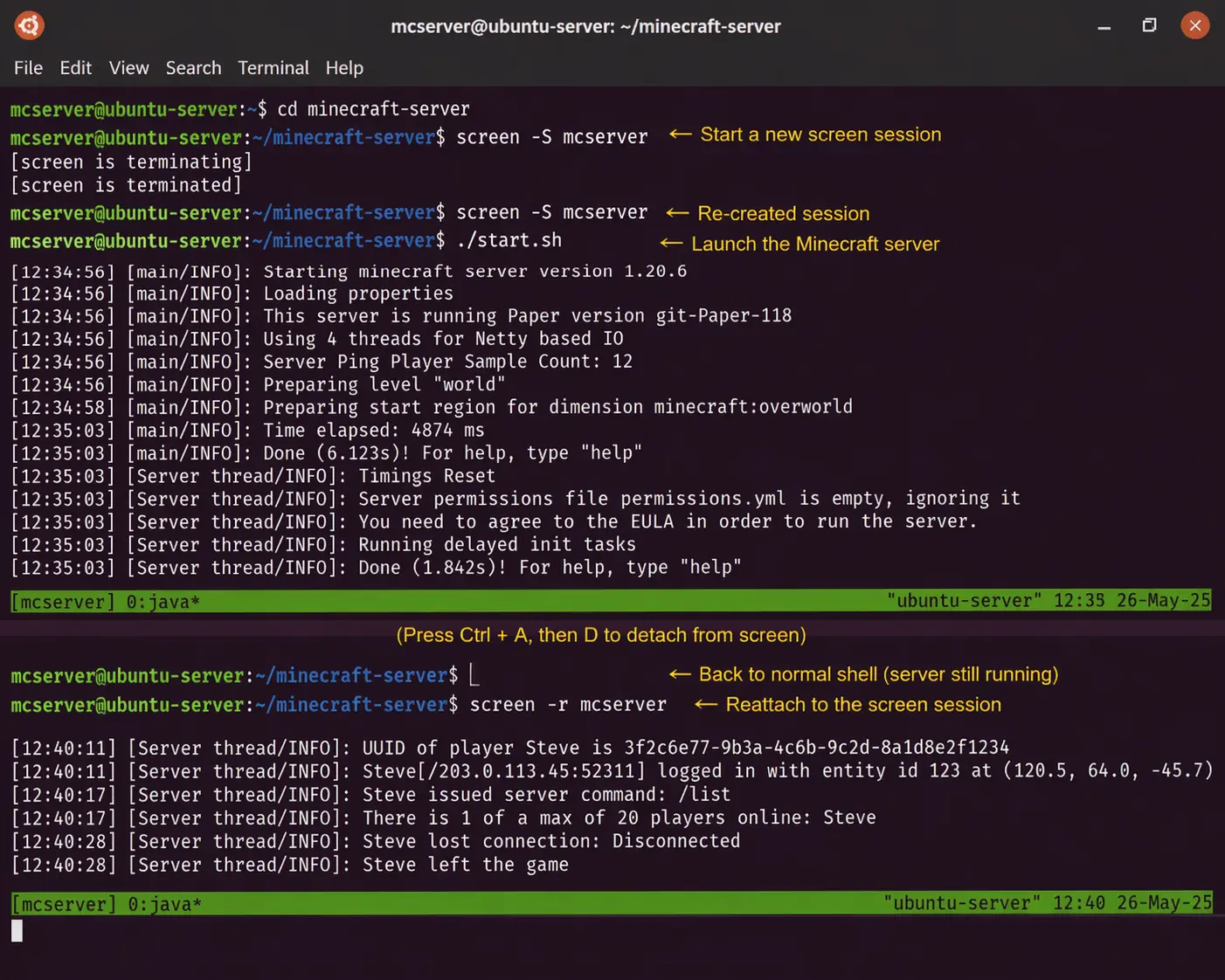
Configure Linux Firewall Settings for Minecraft
Players won't be able to connect unless your server's ports are open. By default, Minecraft Java Edition uses port 25565.
Here are the correct Linux firewall settings for Minecraft (UFW/iptables):
Using UFW (Ubuntu/Debian):
sudo ufw allow 25565/tcp
sudo ufw reload
Using Firewalld (CentOS):
sudo firewall-cmd --permanent --add-port=25565/tcp
sudo firewall-cmd --reload
If you are hosting this on a local home machine rather than a data center, you will also need to research how to port forward Minecraft server Linux on your specific home router by logging into your router's admin panel and forwarding TCP port 25565 to your Linux machine's local IP address.
Optimize Linux Minecraft Server Performance
A vanilla Minecraft dedicated server Linux setup is great, but to handle high player counts, you need to optimize Linux Minecraft server performance.
- Use PaperMC: Instead of the vanilla server.jar, download PaperMC. It is a highly optimized fork of Spigot that patches game exploits and drastically reduces CPU usage.
- Pre-generate Chunks: Use plugins like Chunky to pre-generate your world border. Chunk generation is the #1 cause of server lag.
- Aikar's Flags: Replace your basic start.sh Java arguments with Aikar's Flags, a set of Java Garbage Collection parameters specifically optimized for Minecraft servers.
Pro Tip: Open your server.properties file and reduce the view-distance from 10 to 8 or 6. This simple tweak drastically reduces the amount of RAM and CPU required per player.
Frequently Asked Questions (FAQ)
Is a Linux server better for Minecraft?
Yes, Linux is generally better for hosting Minecraft servers than Windows. It has less overhead, consumes fewer system resources, and offers superior uptime and stability for 24/7 hosting.
How much RAM do I need for a Linux Minecraft server?
For a basic Vanilla server with 1-5 players, 2GB to 4GB of RAM is sufficient. If you are running a heavily modded server or expecting 20+ players, 8GB to 16GB of RAM is recommended.
How do I keep my Minecraft server running when I close the terminal?
You can keep the server running by using the screen or tmux commands in Linux. By starting the server inside a screen session, you can detach from it and safely close your SSH connection without stopping the server.
How do I port forward my Minecraft server on Linux?
If you are using a dedicated server or VPS, you simply need to open port 25565 using your Linux firewall (like UFW or iptables). If hosting locally at home, you must also log into your router settings and route TCP port 25565 to your Linux machine's local IP.
Ready to Build Your Ultimate Minecraft World?
Hosting your own server gives you absolute freedom, but your server is only as good as the hardware it runs on. Shared hosting plans and cheap VPS setups will inevitably lead to lag spikes the moment your community starts building redstone contraptions or exploring new chunks.
For a truly seamless, lag-free experience, you need power you can rely on. Fit Servers offers lightning-fast, highly affordable dedicated servers built for intense gaming workloads. With robust DDoS protection upto 250Gbps, 99.99% uptime guarantees, and top-tier NVMe storage, our bare-metal servers provide the ultimate foundation for your Minecraft community.
Stop dealing with server lag. View our Fit Servers Dedicated Server Plans today and deploy your perfect Minecraft world!
Discover Fit Servers Dedicated Server Locations
Fit Servers dedicated servers are available around the world, providing diverse options for deploying your Linux server. Each region offers unique advantages, making it easier to choose a location closest to your users for the lowest possible latency.